
How to Make Personalized Christmas Cards with Cricut
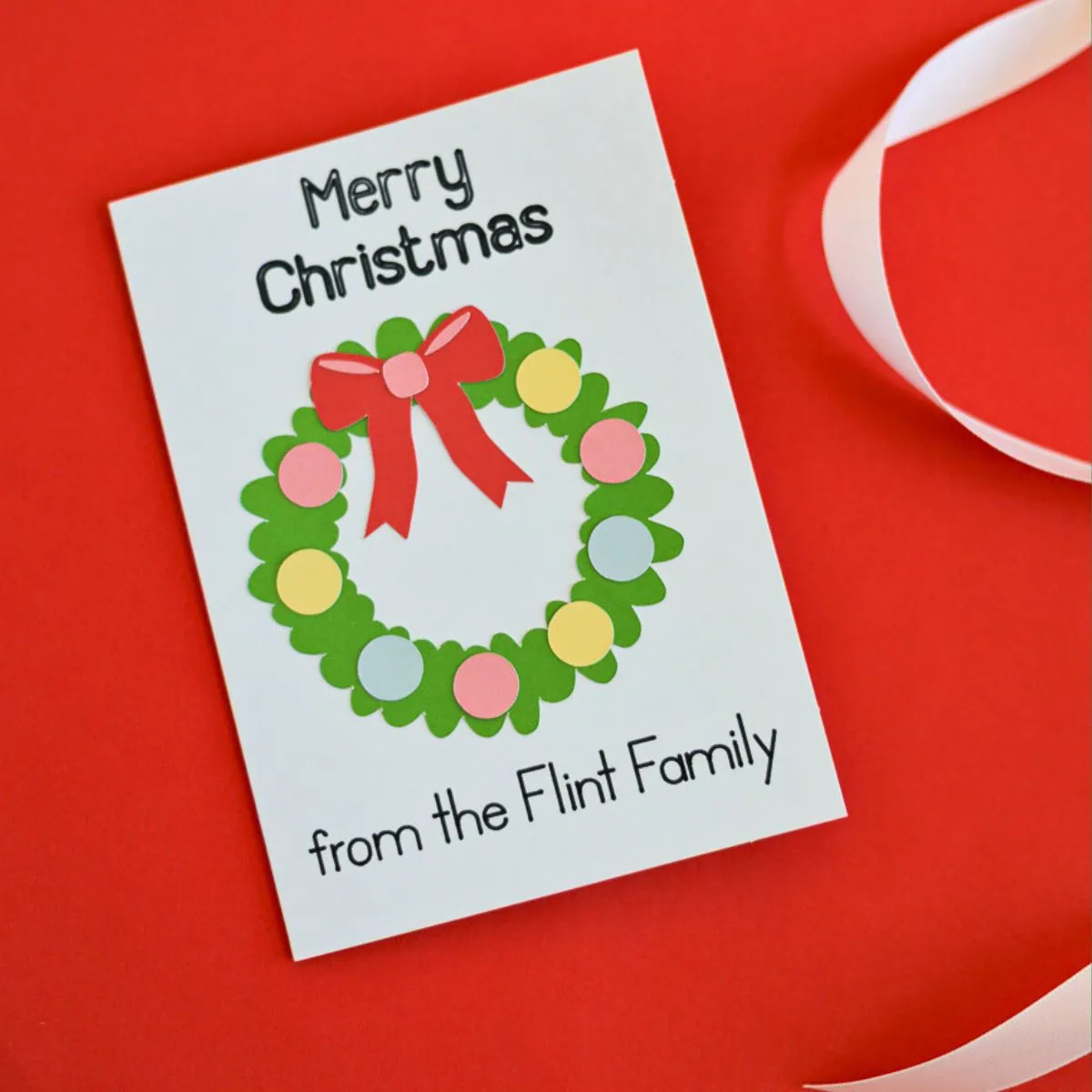
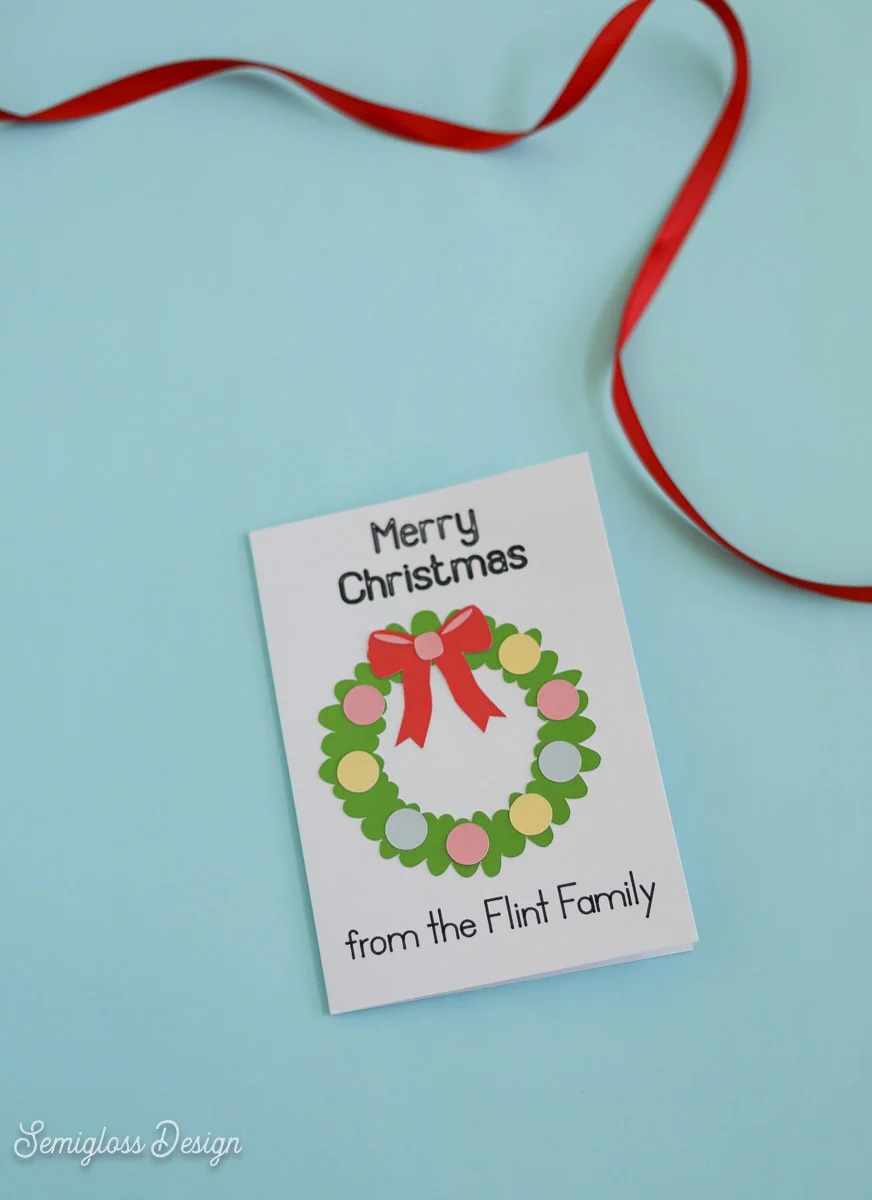
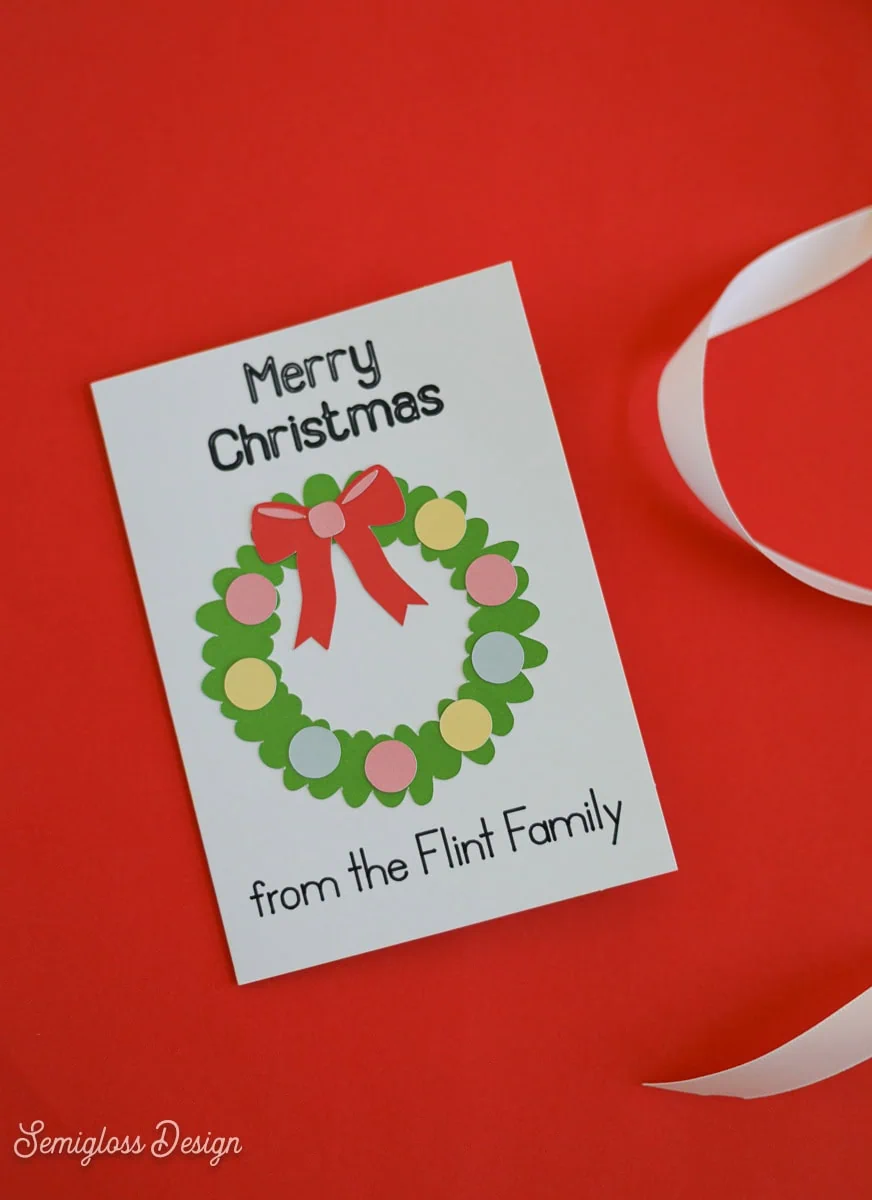
Making personalized Christmas cards with your Cricut is so easy. Add your name to this festive holiday card. It’s so easy!
This post contains affiliate links. By purchasing an item through an affiliate link, I earn a small commission at no extra cost to you. As an Amazon Associate I earn from qualifying purchases.
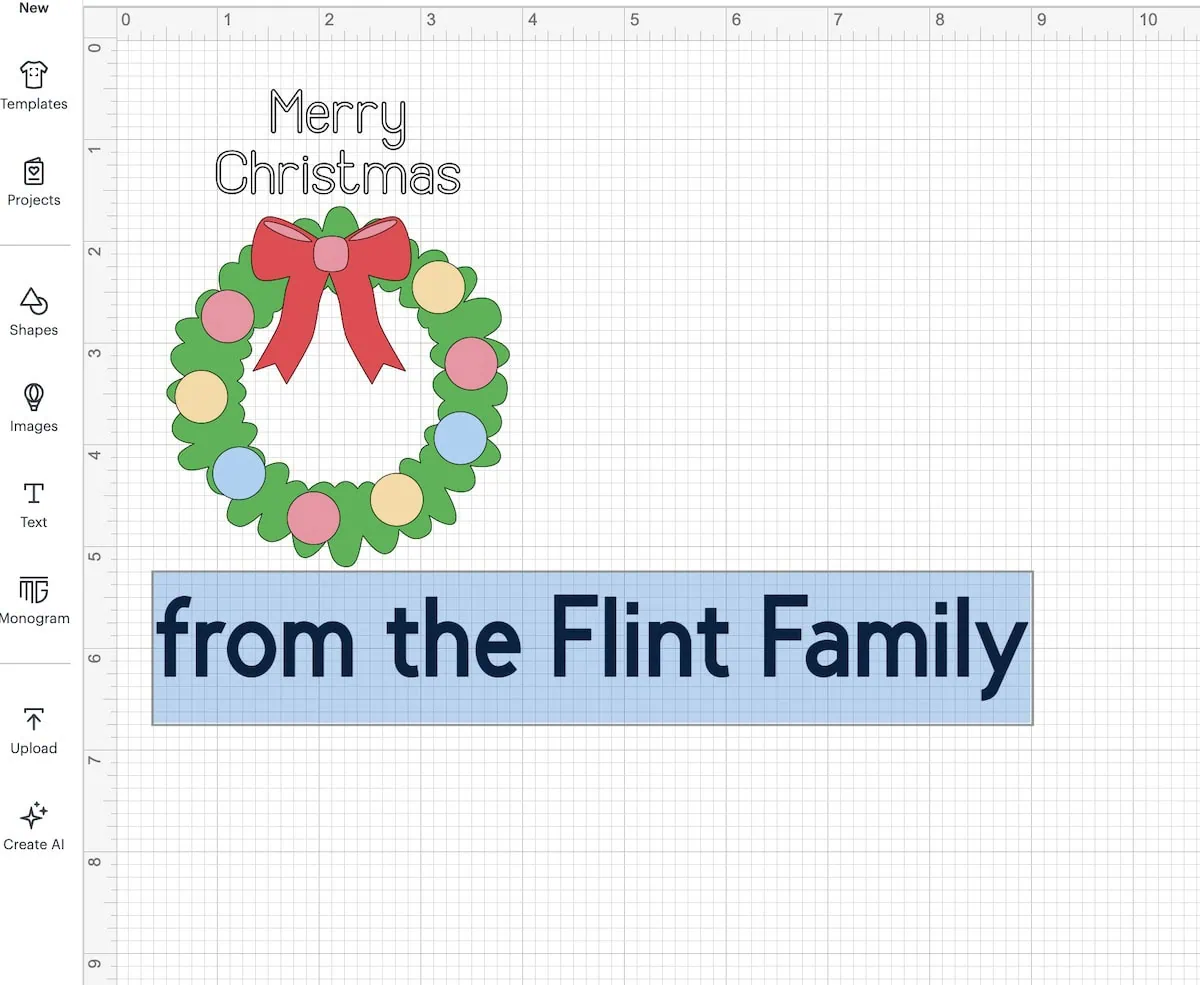
A note about this design: This card says “Merry Christmas” at the top. It was designed outside of the Cricut software, so it creates an outlined effect when changed to draw. I love the effect, but if you want, you can delete it and add your own text in the same manner as described below for adding your name.
Using a Cricut to Make Personalized Cards
Supplies Needed:
- Card Blanks (I used A6 size – 4.5 x 6.25″)
- Cricut (I used my Cricut Maker 3)
- Cricut Pen
- Cricut Card Mat
- Cricut Smart Cardstock (I used the Brights and Pastels Packs)
- SVG (link at bottom of post)
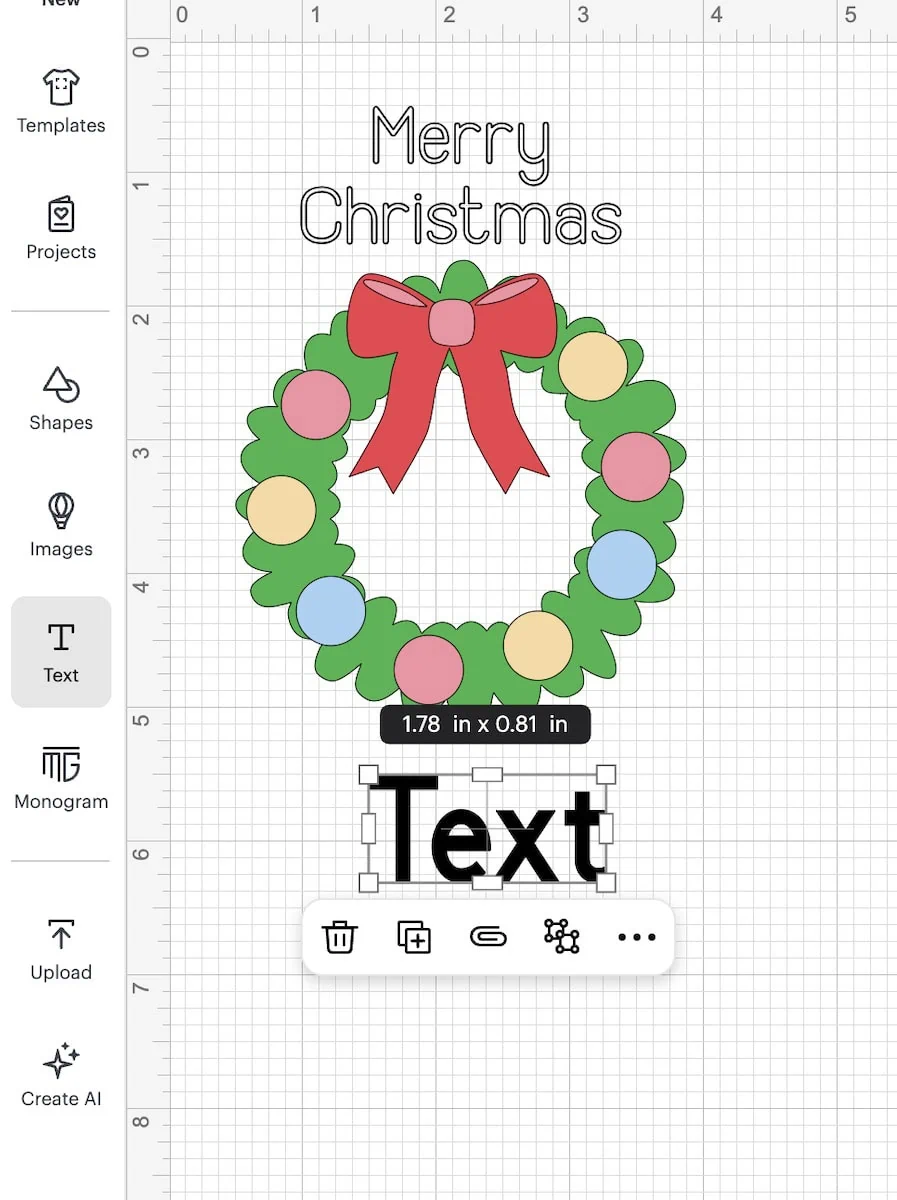
- Upload the design as usual.
- Open the group and select all of the letters for “Merry Christmas.”
- Attach the lettering.
- Change it from “Basic cut” to “Draw – pen”.
- Click the text button to add your own text.

- Click the text to edit. I changed mine to say “from the Flint Family.”

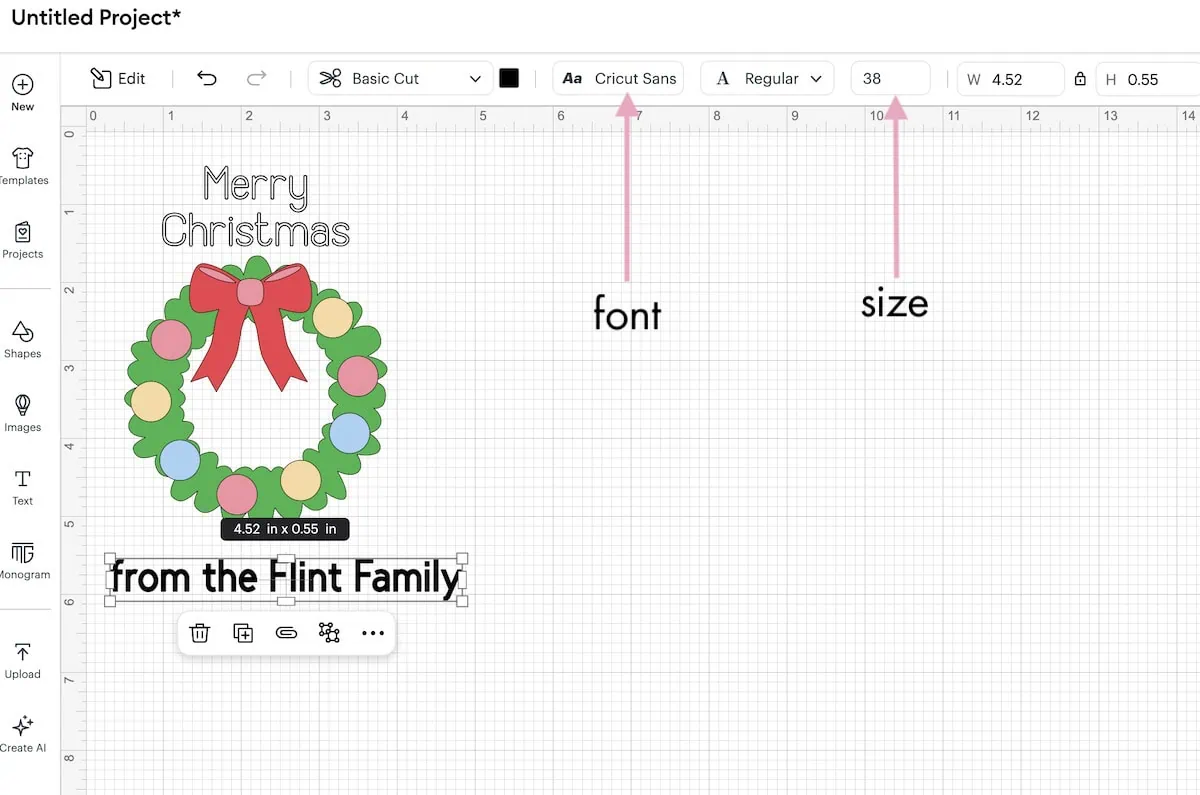
- Change the text size at the top.

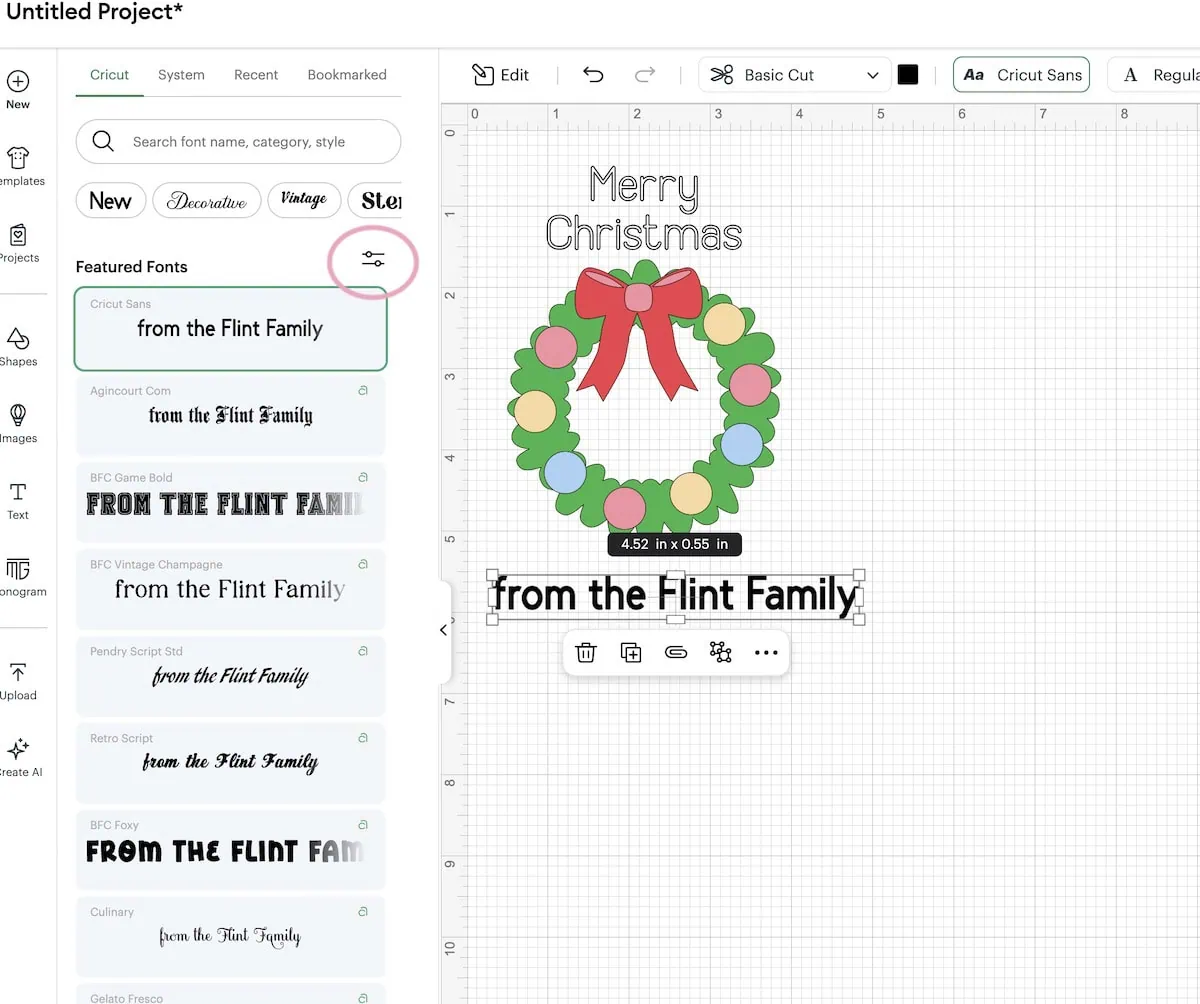
- Click the font box at the top and change the font. You can use Cricut fonts or any fonts installed on your computer. I like using the Cricut fonts that are for writing.

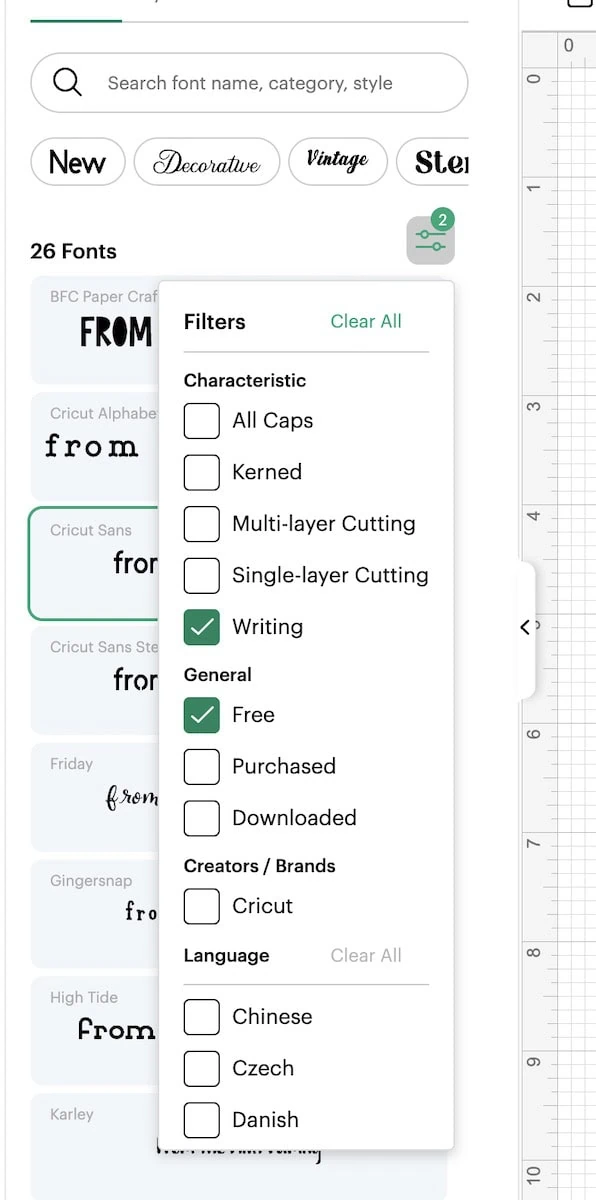
- Click the filter button to select “writing”. You can also select “free” if you don’t pay for Cricut Access. There are plenty of free fonts available. Check out this post about my favorite free Cricut fonts.

- I chose the “Simple Celebrations” font.
- Resize the text as needed.
- Select the text you wrote and the “Merry Christmas” group and attach these. This keeps everything in the correct place.
Making the Card
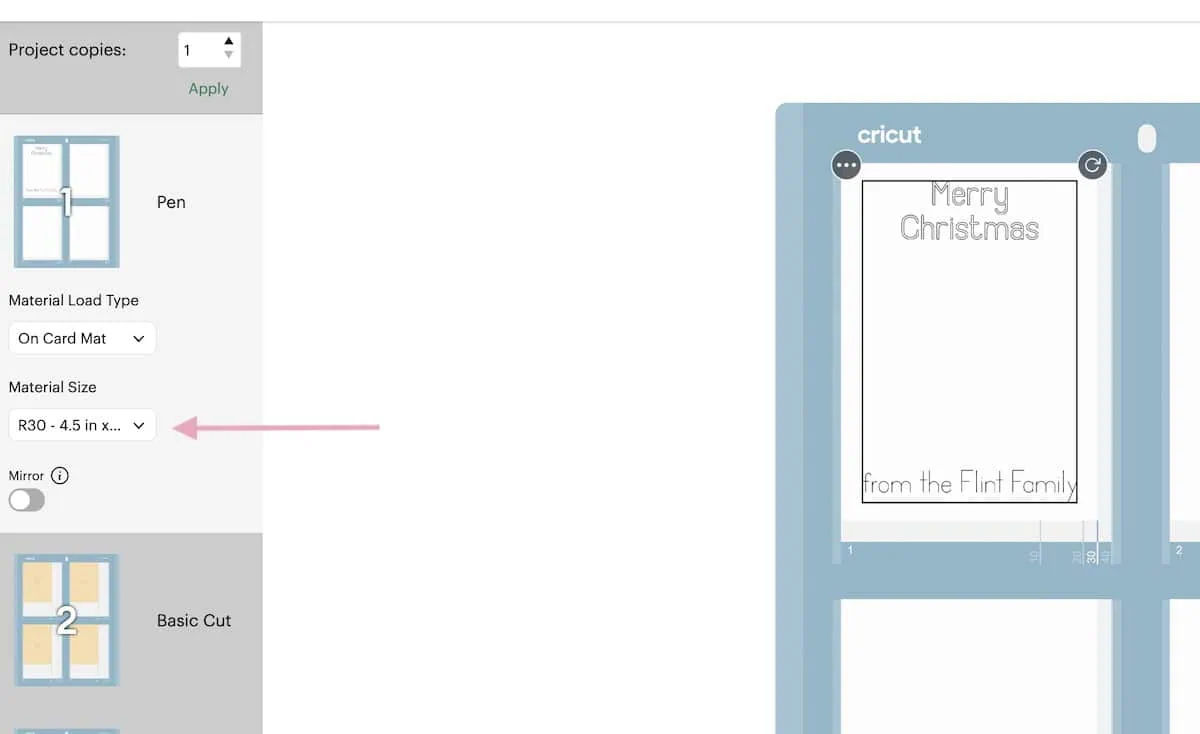
- When your design is ready, click Make.
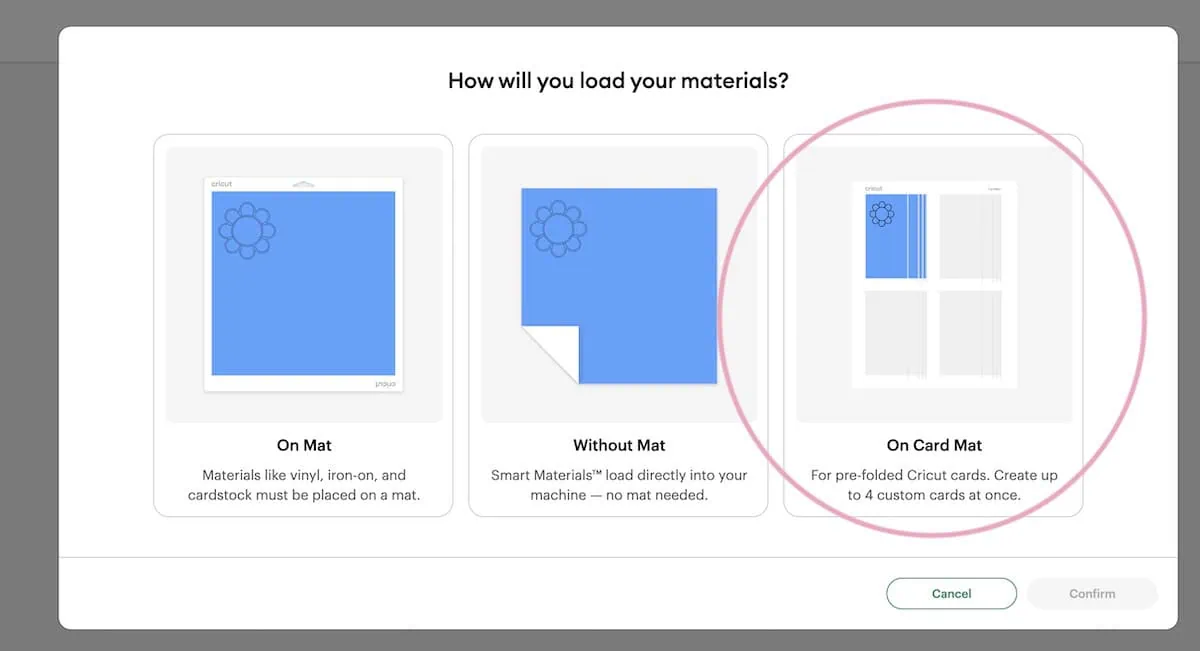
- Select Card Mat from the menu.

- Change the card size to the size you’re using.

- Ensure that the design is in the correct location on the card.
- You can also change the number of cards you’re making if you’re making more than 1.
- Select the continue button.
- Select heavy cardstock for the material.
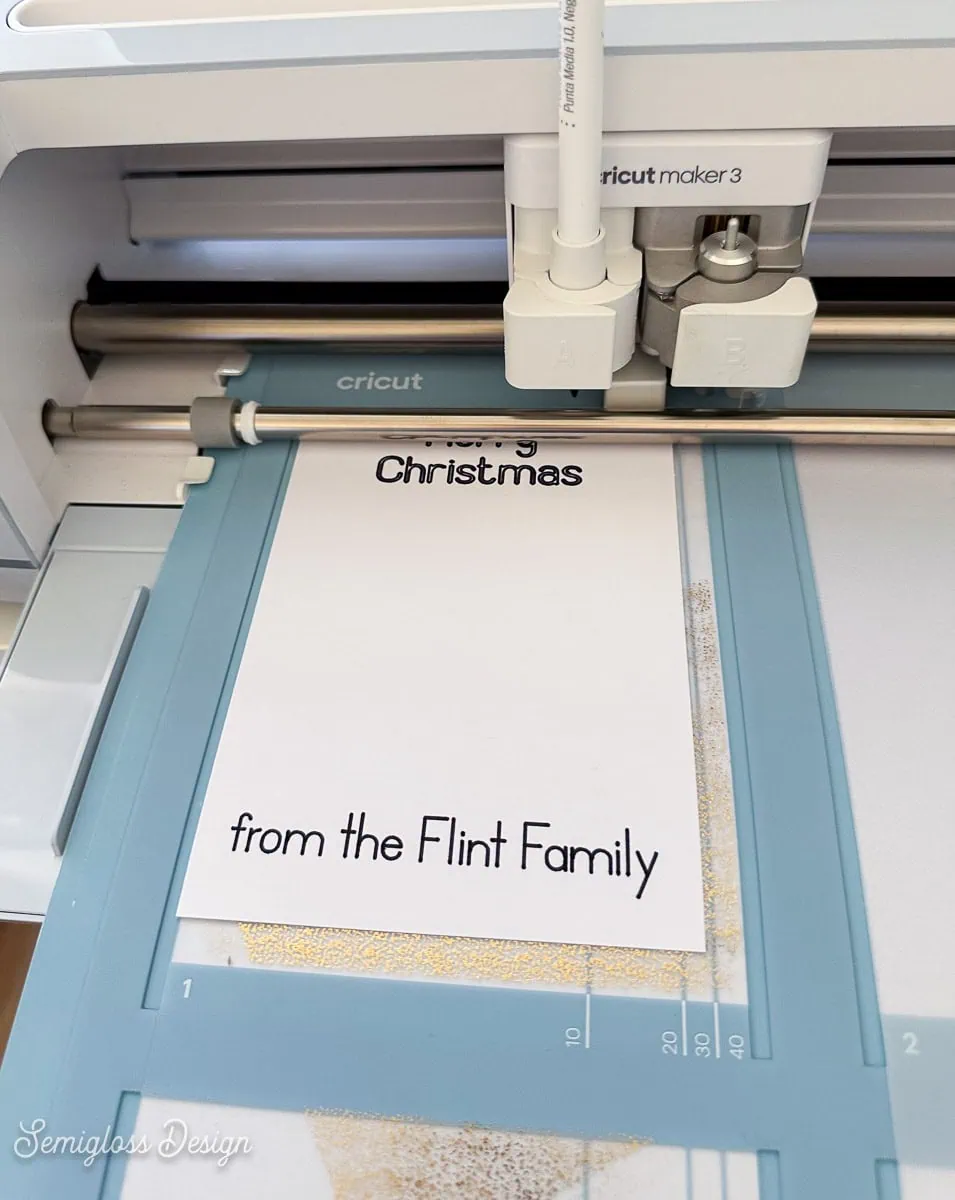
- Insert the pen into Slot A on the Cricut. Make sure that it clicks into place.
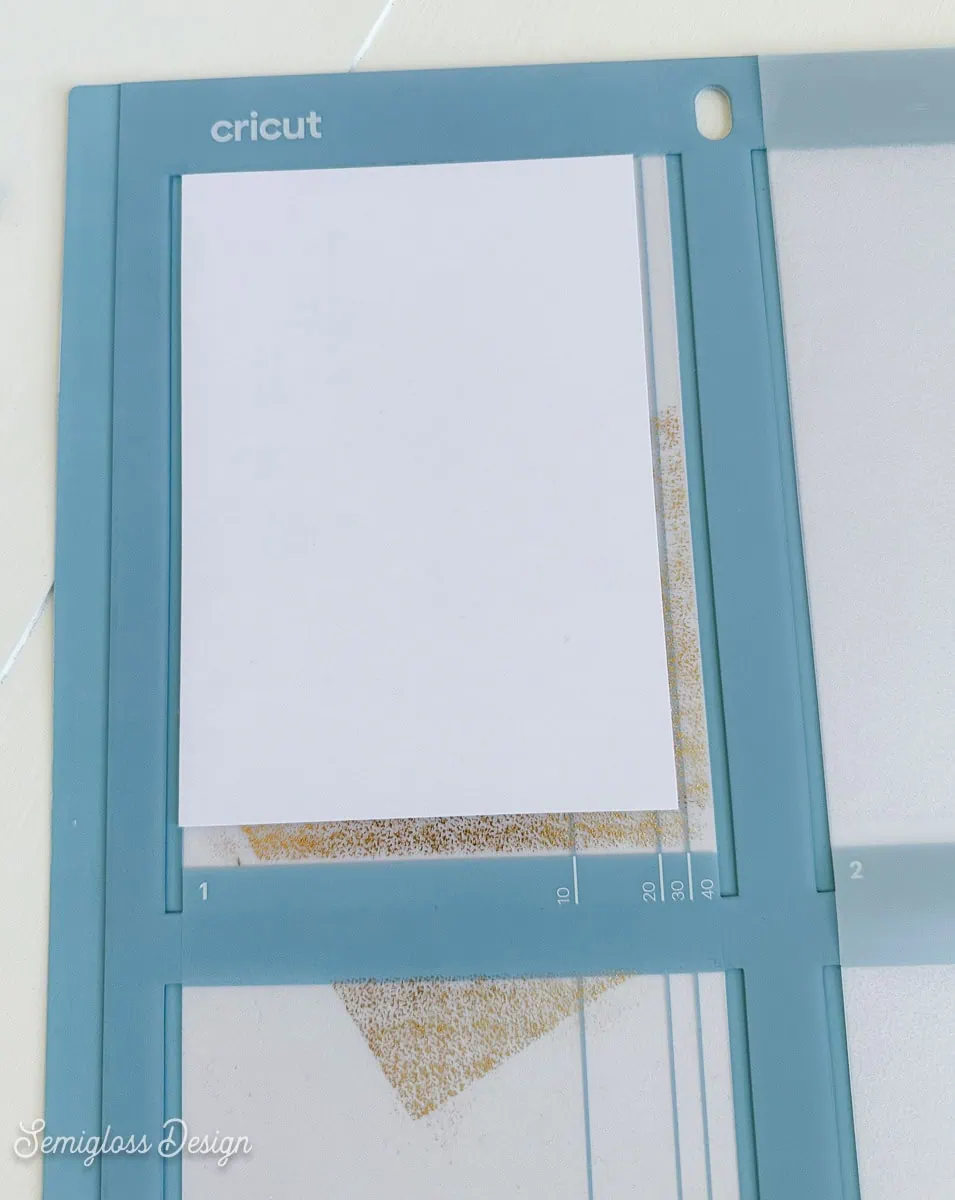
- Load the card into the card mat. Make sure it aligns with the bottom.

- Load the mat and press Go on the Cricut.
- When it’s done, unload the card mat.
- Cut the rest of the design as usual.
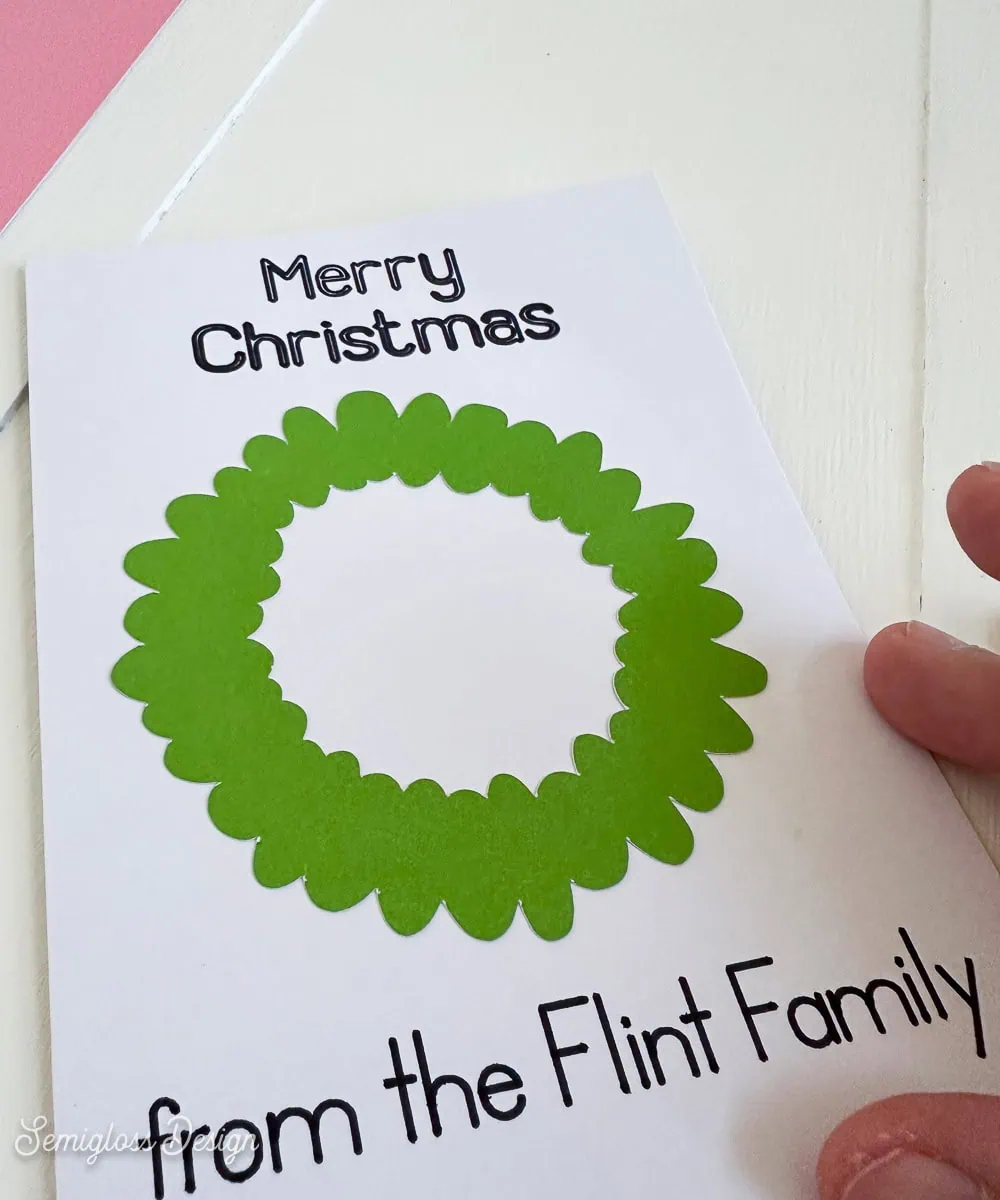
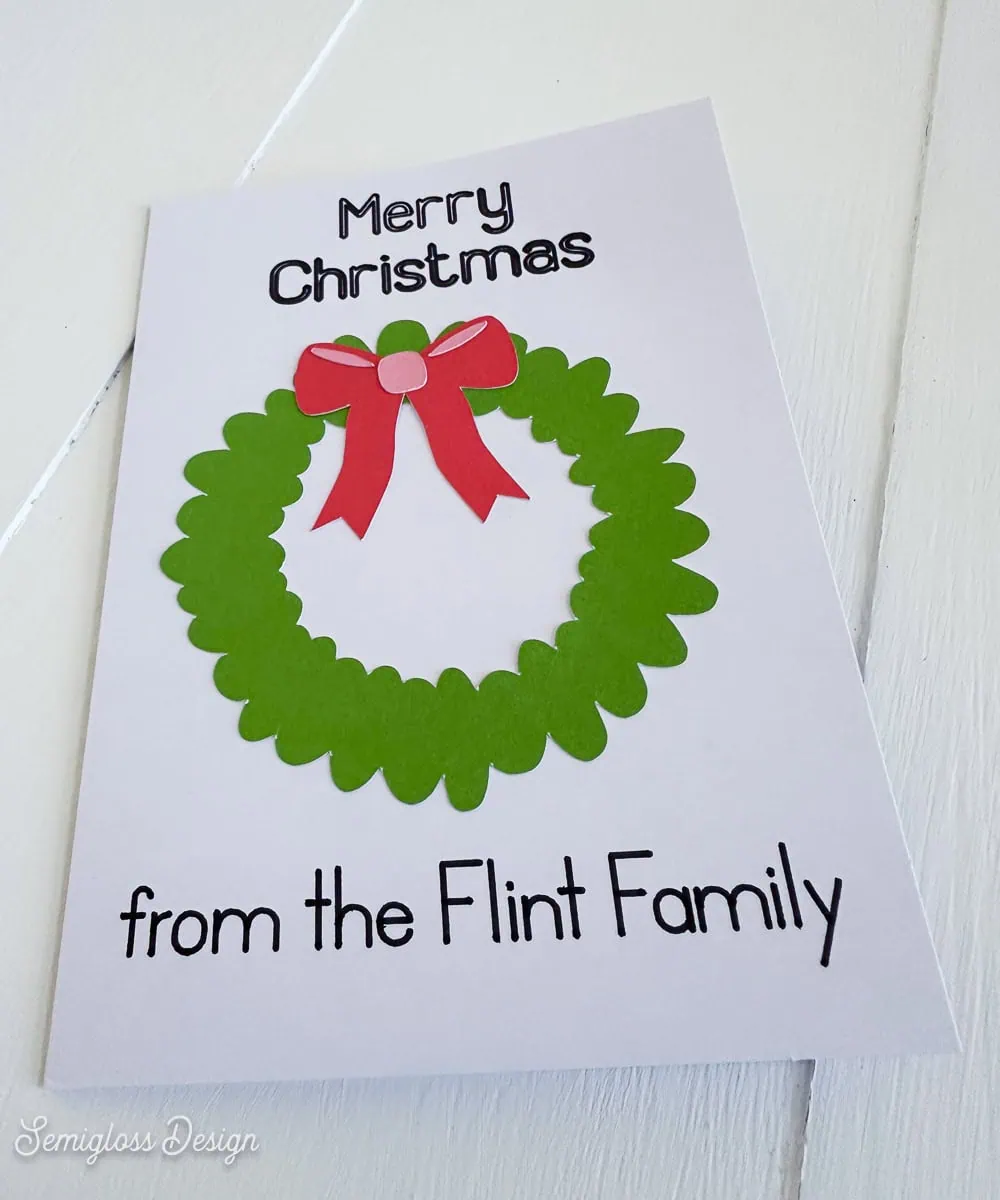
- Apply the wreath to the card.

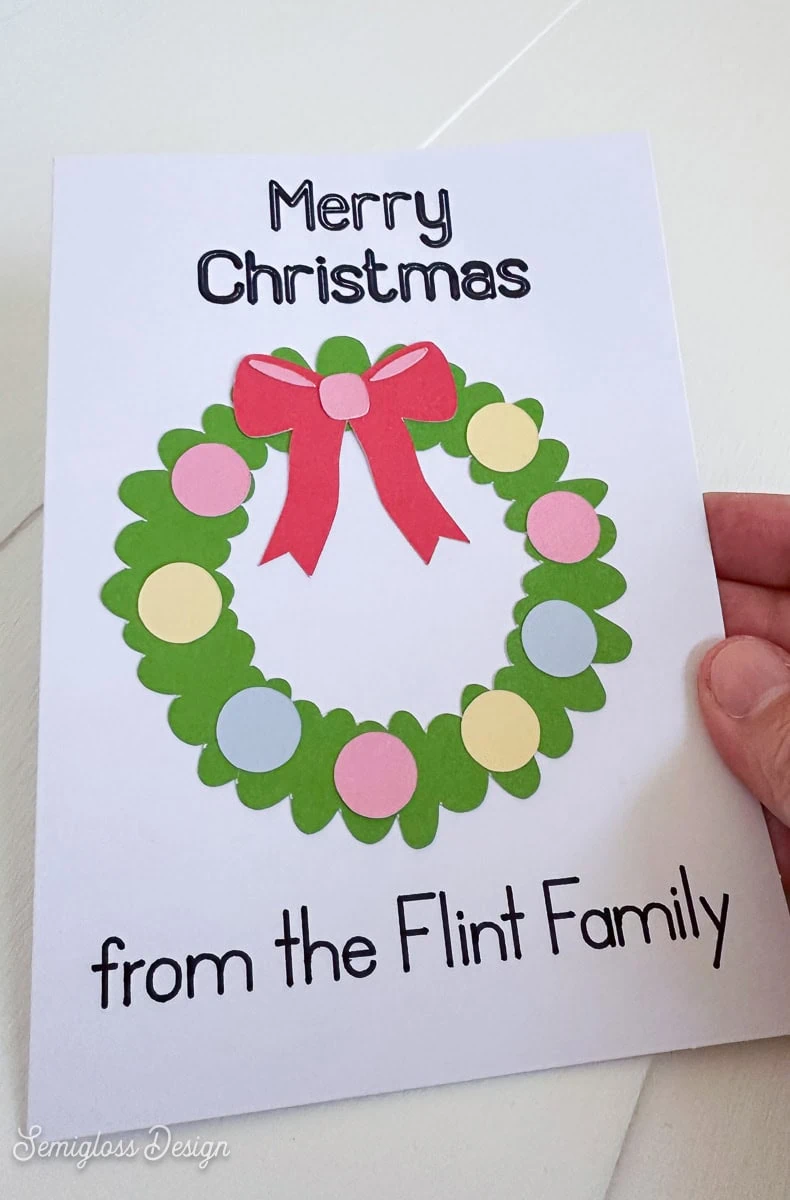
- Add the bow and the bow details.
- Then add the ornaments, spacing them evenly apart.

Tips for Personalizing Cards
Here are some simple guidelines for personalizing cards.
- Don’t use apostrophes. For my family, it would be the Flints, not the Flint’s. We’re not claiming ownership of anything, so no apostrophe is needed.
- If your last name ends in O or Y, add an S.
- If your last name ends in X, Z, S, CH, or SH, add ES.
- If in doubt, use family as I did.
- For a less formal approach, add first names only. It’s a nice way to include everyone.
Get access to my SVG Library.
Get access to over 50 SVG sets and Cricut cheat sheets. Join my SVG library.
Download the Wreath SVG
All downloads are for personal use only. Please do not redistribute or sell files.
This wreath SVG design includes space at the bottom of the card to add your name.
More Creative Christmas Card Ideas
I love making Christmas cards to share. Here are some of my favorites.
This Holly Jolly Christmas card features a fun, retro font and also uses Cricut pens for writing.
Give a little Joy with this fun card that features bold lettering on colorful backgrounds.
Use Cricut Cutaway cards to make this festive ornament card.
Create custom envelopes for your handmade cards. This is such a fun way to elevate your card creations.
Pin for Later!

Emy is a vintage obsessed mama of 2 DIYer who loves sharing affordable solutions for common home problems. You don’t need a giant budget to create a lovely home. Read more…